Showing posts with label how to. Show all posts

Friday, January 23, 2015

Whatsapp on your Desktop - How to use it!


WhatsApp is available on your desktop. 


Here are the following steps in which you get it. Your phone needs to stay connected to the internet for web client to work

1. Update WhatsApp to latest version from your respective App stores. You will need to have 2.11.498 version or higher.


2. Open https://web.whatsapp.com in your Google Chrome browser.

3. You will see something like below on your screen.


Note:  You don't need QR code scanner app to scan it. Don't try to do this, it wont work, telling from my exp.

4. But you still need to your phone to access it. Basically the new web client is a mirror of the app. So you need to scan the QR code that’s displayed on the site with the Whatsapp mobile app. 
Then you can chat from the desktop.

5. Access WhatsApp in your phone and open "Whatsapp Web" option as shown in above screenshot, you will be able to access it based on your mobile OS.
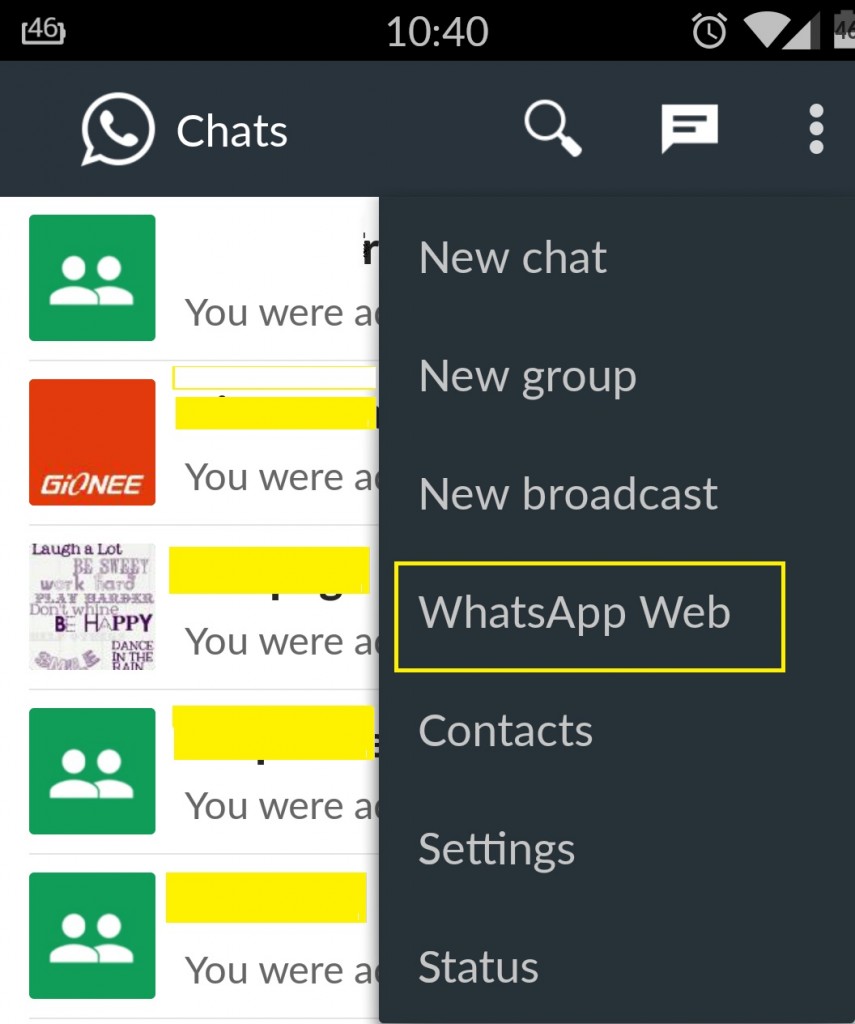


6. It will automatically open your phone camera to scan the QR code shown on web. 

7. VoilĂ  you are logged in to browser. You have now paired WhatsApp on your phone with the WhatsApp web client.

Few Point to Note:
>> Will work only on Google Chrome Browser for only who have Android, Windows Phone or Blackberry version of the Whatsapp. Tough luck for iPhone users. Much like safari, mozilla broswer lovers you also have to wait till iPhone support comes out.  

>> It doesn't support iPhone   

 >> Needs your phone to be on and connected to the internet - After pairing your smartphone with WhatsApp's web client through a QR code image, you'll be able to send and receive messages through your browser. But what if your phone loses the data connection or runs out of charge? WhatsApp web version will also go offline.                                                                                      >> You can't block users     

>> You can't create and leave groups

>> You can't Delete or Forward a Message  or clear conversations.
 ~~~~~~~~~~~~~~~~~~~~~~~~~~~~~~~~~~~~~~~~~~~~~~~~

Wednesday, November 26, 2014

How To Create an RSS Feed For YouTube Channel


How To Create an RSS Feed Your YouTube Channel

Method - 1

If you would like to create an RSS feed for your YouTube channel into an RSS feed, its pretty striaght forward.  just take the following URL:
http://gdata.youtube.com/feeds/api/users/yourchannelname/uploads
and replace the”yourchannelname” with your YouTube channel name and you are all set!
-----------------------------------------------------------------------------------

Method - 2 

Alternatively you can also generate one using below url 
http://anthonyhayes.me/free-seo-tools/youtube-rss-feed-tool/ 
----------------------------------------------------------------------------------- 

Method - 3

Another way of getting feed of videos is using this way
https://www.youtube.com/user/ChannelName/feed


Friday, January 17, 2014

How to access, see google cache age of any url or deleted web page


How to access, see Google cache age of any url or deleted page


You can access the cached version for any page that has been saved by Google with this:


http://webcache.googleusercontent.com/search?q=cache:http://example.com/ 

Change http://example.com/ to any URL. See example below
 
Example

http://webcache.googleusercontent.com/search?q=cache: http://www.niticentral.com/2013/10/22/upcoming-modi-events-149052.html


you would see screen like this in google cache view 


Info Credit : http://webapps.stackexchange.com/questions/27414/how-to-use-googles-web-cache-to-view-a-page